Showing posts with label email. Show all posts

How to Protect Shared Files on Google Drive by Disabling Download Option

You can upload any files to Google Drive and share with your friends at any time, any where. If you share a file with your friends on Google Drive, particular person can download that file to their computer. This is the default setting on Google Drive.


Protect your Shared Files on Google Drive by Disabling Download Option

But there is a method available to "disable downloading option" on Google Drive for protect your files from others.


So let's see how to disable download option on Google Drive

Sign into to your Google Drive account and open the file which will you share

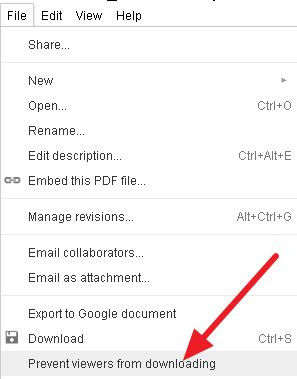
Now go to file menu and click Prevent Viewers from Downloading


Protect your Shared Files on Google Drive by Disabling Download Option

That's all, you have done !!!

After that as usual hit share button and share your files with friends.

Now downloading option has been disabled on your Google drive account. If someone tries to download your shared files, they won't be able to see a downloading option on Google Drive.
Read More

All in One Software for Windows 8, One Click Installer for Popular Freeware Utilities

Windows 8 is one of the most expected product from Microsoft. It was released few month ago and running successfully on huge number of computers now. Recently Facebook touch app is updated for Windows 8 with some new features. Facebook touch app is designed as simple, fast and comprehensive.


Download Facebook Touch for Windows 8

You can have a touch optimized experience in your Windows 8 devices with this new updated Facebook touch app. This app consist some cool features. you can
access to your news feed,
view user profiles,
and you can chat with your Facebook friends with this app.

You can download the Facebook touch app for free of charge on Windows store. Facebook touch app supports on all builds of Windows 8.

Click here to Download facebook touch
Read More

Block unwanted Emails (Gmail, Yahoo mail, Hot mail)

Do you want to block theunwanted emails in your inbox? Then some of the following steps are 

given belowtake them to account.


Gmail

Login to your account.

Click on settings (top right corner)

Under settings, click on Filters.

Now click on the option , Create a new filter.

Now in the From field fill the email id from which u don"t want to receive emails.


Yahoo

Login to your account

Click on Options. (At the top-right corner)

Now click on More options.

In the left panel select the option Filters and click on create or edit filters

Now click on Add.

In the next screen, give a name to your filter and in the From header field enter the email address 

that you want to block.


Hotmail


Login to your account


Click on Options. (At the top-right corner )


Now click on More options.


Click on Safe and blocked senders link under Junk e-mail.


Click on Blocked senders.

Type in the email address that you want to block under blocked e-mail address or domainfield.
Read More

Schedule your own time, and send mails in Gmail

Gmail is a free Email service provided by Google. It provides it's users with great features.
Most of it's users don’t know that Gmail can automatically send E-mail. This feature makes you to send emails at the appropriate time by scheduling the sending time. If there are any emails to be sent later or on the next day, it can be simply composed and be scheduled, so it will automatically reach the other person on time that you have scheduled.


 Schedule your own time, and send mails in Gmail

To bring this feature in Gmail


As always, press the Compose button to create your mail and then give details of the sender to the Send button, you will see that it is added a new page namely “Send later”. 

Now click on the “Send later” button.

Set the time at the schedule button at the bottom right, so the mail will be sent at the appropriate time.

WARNING : This is only for Google Chrome 
Read More

Gmail doesn't recognize Dots (..) as characters

Today most of us use Gmail, it is one of the email service provided by Google. Earlier too I  have shown you few tricks on Gmail such as Use Gmail without Internet.


Today I am going to show you an interesting trick on Gmail.
How many of you know that Gmail doesn't recognize dots (...) as characters within username?
Yes, it doesn't recognize dots within username, so it doesn't matter even if you type dots as characters in your username.
You can access your Gmail account even if you type dot(s) within your username, but your password must be typed properly.

Suppose if your Gmail ID is letshack2day@gmail.com, the messages sent to all below email addresses will be dropped in fazlul@gmail.com

le.ts.ha.ck.2.day.@gmail.com
l.e.t.s.h.a.c.k.2.d.a.y@gmail.com
letsha.ck2day@gamil.com
let,hac.k2d.ay@gmail.com

All the above addresses belong to the same person, so there is no any problem even if you type your username with dot(s).

Nothing surprising, just try it with your Gmail account!!!
Experience and leave your comments.
Read More

Use Gmail without Internet


Gmail offline allows us to read, respond to, and search without network access. So even 

if you are offline, you 


can open your web browser, go to Gmail.com and get to your mail just like you are used 

to.
Use Gmail without Internet


Gmail offline allows us to read, respond to, and search without network access. So even 

if you are offline, you 

can open your web browser, go to Gmail.com and get to your mail just like you are used 

to.


Click here to Install offline Gmail

How to start Offline Gmail
  • After installing, open a new tab in Chrome.
  • In the new tab panel you will see a Gmail Offline Icon
  • Click on the Icon, and then Offline Gmail will load.
  • Now you can keep reading mails and also any new messages you compose will be sent out the next time you connect to internet.
Note: This is only available in Google Chrome.
Read More

How to Send Password Protected E-mails

Most of us use Email-service to send data and files to our friends. If we want to send some confidential information to someone such as Bank detail, Credit card numbers, we use E-Mail services. It may not be secure to send directly without any encryption or password protection. This insecure situation gives a big chance to Hackers. If someone hack our mail ID, they can misuse the particular details.


To avoid this insecure situation you can send confidential information to the particular person through "Lockbin".

Lockbin provides password protection and AES-256 bit encryption to Emails.


How to send password protected Emails using Lockbin

Click here to go Lockbin


Fill the form (Your name, Password, etc..)


In the text field, write your confidential information details. If you want you can attach files too.

How to Send Password Protected E-mails

Then click on Submit button.

Now password protected mail will be sent to the particular person, only the particular person will get the link to read your password protected mail.


How to Send Password Protected E-mails


If the person click that link it will ask him/her to Enter the password.( Don't forget to send the password to your friend. You can send password through Mobile or normal Email ) 

Note : Password protected mail stores in Lockbin server itself.
Read More

How to Grant Access to Others to Your Gmail Account Without Sharing Password

Gmail is one of the most popular mailing service today. It gives many facilities to it's users. such as

Use Gmail Without Internet Connection
Schedule your own time, and send emails in Gmail
Remove Spam emails automatically in Gmail


In this list now gmail gives one of the greatest facility to its users. Its called as grant access. This means you can give grant access to your gmail account to a friend, without sharing your password.

Most important thing is in this, other person can't change any setting or password of your gmail account. And also can't chat from your account. This feature 
only allows the other person to 
read inbox mails, 
can delete read mails, 
and can send mails from your account. 
More than this, particular person can't do any changes in your gmail account. 

How to active this feature?

Login to your Gmail account

Go to Settings


How to Grant Access to Others to Your Gmail Account Without Sharing Password


In Setting, Click on Account and Import tab

How to Grant Access to Others to Your Gmail Account Without Sharing Password


Now go to Grand access to your account section
Then click on Add another account

How to Grant Access to Others to Your Gmail Account Without Sharing Password


Now a pop-up window will appear, in that window type the particular person's email address that you gonna give the access.
Then click on Next

How to Grant Access to Others to Your Gmail Account Without Sharing Password

In the next appearing window click on Send Emails to grant access

How to Grant Access to Others to Your Gmail Account Without Sharing Password

Now particular person will get an email to conform the grant access. 
He/She should conform the grant access to access your account.


How to conform the grant access?

He/She can conform by clicking accept this request link

How to Grant Access to Others to Your Gmail Account Without Sharing Password


That's all, you have done.
After 30 minutes the particular person can log into your Gmail account.


How to login?

The particular person have to login to his/her gmail account and should click on his/her name in the top-right of the window.

Now he/she can see another new email id with the word (delegated), below their email id.

If he/she click on that new email id, they can access to your Gmail account without password require.
WARNING:
If he/she send an email to anyone from your account, the mail receiver will get the particular person's email id in sent by section. So he/she cannot misuse your email account, you don't need to worry about misuses !!

Read More
Designed By Seo Blogger Templates