Showing posts with label Windows xp. Show all posts

Windows 10 preview free download with product key !

WINDOWS 10 free preview  download


While the whole world was waiting for the next generation of Windows operating system, i.e. Windows 9, but skipping right over 9, Microsoft has announced the next version of its Windows is Windows 10, disclosing its first details on Tuesday at an event in San Francisco.

The latest version of Microsoft’s flagship operating system, which will be available for everyone next year, brings back the popular Start Menu, which had been removed from Windows 8.

Windows 10 will be Microsoft’s single platform for developing apps across all devices, from Smartphones and tablets to desktop PCs. However, Windows 10 will not be a one-size-fits-all operating system and instead will vary a bit from device to device.

"Windows 10 will run on the broadest amount of devices. A tailored experience for each device," Microsoft's executive VP of operating systems, Terry Myerson said at a press event here Tuesday. "There will be one way to write a universal application, one store, one way for apps to be discovered purchased and updated across all of these devices."
"Some of these devices you hold in your hand, others are ten feet away," Microsoft said. "Some of these devices you primarily use touch/pen, others mouse/keyboard, others controller/gesture—and some devices can switch between input types. We’re not talking about one UI to rule them all—we’re talking about one product family, with a tailored experience for each device."
Codenamed as Windows Threshold, Windows 10 will come with customizable live tiles in the new Start menu, which will look familiar to Windows 7. Among other features, Windows 10 will provide new options for re-sizing windows, multiple desktops, and a convenient "task view" to switch between them.

The resizable tiles will provide users a quick view of notifications from relevant applications, such as details of new emails, Facebook messages, weather forecast updates and more.

Other features include Task View – which supports multiple desktops, and Snap Assist – which lets you grab apps from multiple desktops. The Windows command prompt has also been improved.

The announcement of an updated Windows operating system doesn't come as a complete surprise, as the leaked images of the latest Windows OS – under the codename "Threshold" – spreaded online which gave a closer look at Microsoft’s next major version of Windows. The only surprise is that the latest version of Windows is Windows 10, instead of Windows 9.

"We believe that, together with the feedback you provide us, we can build a product that all of our customers will love," Myerson said. "It will be our most open collaborative OS projects ever."
Microsoft has open up the OS to dedicated beta testers under its Windows 10 "Insider Program" for individuals to start testing and already reached out to companies to evaluate the new operating system as well. Windows 10 is still in its early stages of development and is expected to ship in mid 2015.

Download Windows 10 Technical Preview Edition
Read More

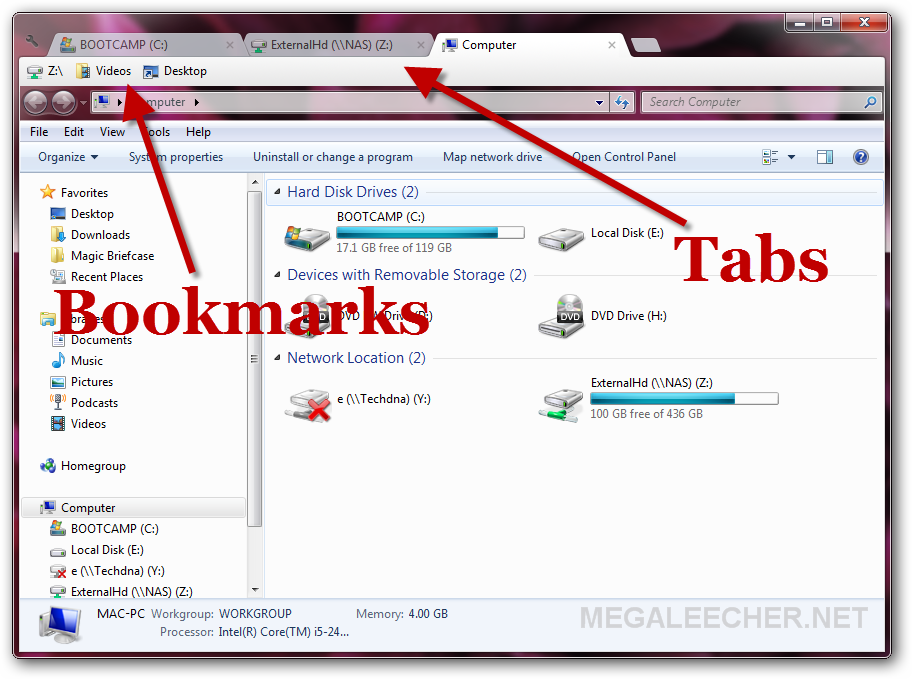
make windows explorer tab look like chrome....


to make u r windows explorer look like chrome we need to install a software called clover.

what us a clover ?


Clover is an extension of the Windows Explorer, to add multi-tab functionality similar to Google Chrome browser. After install Clover, you will be able to open multiple folders within the same window, and you can also add folder bookmarks.

we are providing clover for free u can download it here ...

software name :CLOVER
VERSION : 3.0.406

FREE FOR LETSHACK2DAY  readers ...

DOWNLOAD


Read More

With the death of Windows XP, now is the perfect time to switch to Linux

If you're one of the few hundred million people that are still using Windows XP, I have a suggestion for you: It’s time to switch to make the switch to Linux. With the official retirement of Windows XP, the release of Ubuntu 14.04 LTS, and surprisingly healthy software and gaming ecosystems (yay, Steam!), there has never been a better time to switch to Linux. Linux will also run very well on any old, Windows XP-era hardware that you might still be using, too — and if you're anxious that you’ll be filled with switchers remorse after nuking your Windows installation, don't worry: dual-booting is a cinch as well.

Why switch to Linux?

As you've no doubt heard over the years from writers and enthusiasts far beardier than I, there are all sorts of reasons for switching to Linux, from financial to ideological to functional, and everything in between. For some tasks, Linux is far superior to Windows. More importantly, though, there are many tasks where Windows isn’t significantly better than Linux — such as surfing the web (Chrome for Ubuntu is the same as Chrome for Windows or OS X). Even for gaming, Linux is definitely catching up with Windows, thanks to Steam and the Source engine. (The big exception is big-budget FPSes, where Linux definitely falls flat).

Linux is great for reviving your old Windows XP beige box
Really, a better question to ask is why shouldn't I switch to Linux? If you need to use Microsoft Office, or one of Adobe’s multimedia apps, you should stick with Windows or OS X. If need a very Windows-specific tool, like Visual Studio, then Linux isn't for you. If you want to play the latest and greatest PC games on release day, then you really need to use Windows.
For most everyday tasks, thanks to advanced browsers like Chrome and Firefox, and the maturity of web apps like Gmail and Google Docs, you may be surprised by how proficient a modern Linux distro is.

How do you switch to Linux?

Most modern Linux distributions make it fairly easy to switch from Windows. Wubi lets you install Ubuntu in a dual-boot configuration from Windows. For most other distros, such asLinux Mint or Debian, it’s mostly a matter of grabbing the correct 32-bit or 64-bit ISO, burning it to a CD or USB stick, and rebooting your PC. (How to do that is beyond the scope of this story, but Google will give you a dozen easy-to-follow guides.)
To begin with, make sure you install Linux in a dual-boot configuration. That way, if you’re struck by switchers remorse, or you suddenly remember that you need to use an app that’s only available in Windows, you can simply reboot.
Depending on your hardware setup, installing and running Linux for the first time can be a bit tricky as well. A modern distro like Ubuntu 14.04 supports most hardware under the sun, but you may have trouble with older hardware or extreme outliers. Bear in mind that hardware makers focus their efforts on Windows and OS X drivers, relegating Linux drivers to a distant third place. Things like mice and keyboards and external hard drives should be fine — but you might have issues with your monitor calibration gizmo or USB audio breakout box.
Unfortunately, the only real way to find out if Linux has any issues with your computer is to install it (most distros install fairly quickly, though).
Fortunately, if you are having issues with a device after installing Linux, you can normally find very good support online. Linux support isn't quite at the same omg-500-search-results-for-a-really-obscure-bug level as Windows, but it’s pretty good.
Steam for Linux, on Ubuntu

What should you do after installing Linux?

I won’t lie: Switching to Linux from Windows XP (or indeed any other operating system) will be a fairly harsh experience. Modern Linux distros are much better than they used to be, but there are still a lot of rough edges that you won’t notice until they’ve stabbed you in the ankle. In my opinion, the best thing you can do after installing Linux is to use it. Don’t fall for the usual trap: Don’t run back to Windows with your tail between your legs the first time Linux throws an error in your face. Stick with Linux, and you might just find that you like it.
Here are a few more tips for making the switch to Linux:
  • Install Steam, and then buy some Linux games. You will be surprised at the number of good and half-decent games that are now available for Linux through Steam, including FTL: Faster than LightDota 2Europa Universalis IV, and all the usual Source engine games. Through Wine and Cygwin emulation, other older Windows games are available to you as well.
  • Read an Ubuntu guide. One of the biggest issues with switching to Linux is not knowing how to perform basic tasks, such as watching a video. The Getting Started guide, produced by the Ubuntu Manual team, is pretty good (you don’t need to read the whole thing, but the table of contents makes for a useful reference). Always remember that googling for “how do you do X in Ubuntu” will usually turn up a ton of results.
  • Finally learn to use the command line. Linux, at its heart, is a command-line based operating system. The Linux command line is incredibly powerful; there’s almost nothing you can’t do, and in many cases it’s the best or fastest way to do something. Ubuntu’s official Using The Terminal guide is a pretty good starting point. You will love apt-get.
If you have your own tips for switching to Linux from Windows, be sure to share them in the comments. Alternatively, if you think that Linux still isn’t ready for an influx of ex-Windows XP users, be sure to let us know as well.
Read More

We Can use our USB as RAM

USE YOUR PENDRIVE AS YOUR SYSTEM RAM

1) First Insert the Pen Drive atleast having an memory of 1GB ,( Preferably 4GB) in the Given USB port of the Computer
2) Wait for the Pen Drive Detection and see whether it is detected or not
3) After detection of Pen Drive, you should do the following things Carefully
4) Now go to My Computer and right click it, then go to the Properties
5) Now go to Advanced and then to the Performance settings
6) Now again Advanced, and go to Change
7) In the Change, select the pen drive which u inserted
Then click on the Custom size and ” check the value of space available ”
9) Please Enter the Same in the Initial and Maximum Columns also
10) Now your Pen drive space is used for the System Virtual Memory , Just Restart and enjoy the Faster and Furious PC
Warning : Try at u r own risk.

Read More

Fasten the copying speed of your usb


If your Pen Drive File Transferring speed is slow here is the way to speed up the coping files on pen drive

> Connect your pen drive
> go to “my Computer”
> Right Click on “Removable device” which is your Pen Drive letter
> Now Select the Last Option that is “Properties”
> Go to “Tools” option
> Select “check disk error” and Click OK
> Now Again Right Click on your Pen drive and Select “Format” option
> Click on “Default value”
> uncheck (unmark) the “Quick Format” option
> Click on Format

WARNING :
  • Plz wait as this will take some time to finished
Read More

How to protect PC with BIOS password?

BIOS stands for Basic Input Output System. It helps to boot your computer. Securing your data is important, because you may have something personal or official data in your machine which you wouldn't want to share with others. One way to protect your PCs is to set passwords, however such type of protection is basic and will be subjected to a number of exploits.

BIOS helps to secure your computer and protect it. If you set passwords on your BIOS, when someone  tries to access your BIOS and make changes on your settings, definitely the BIOS will ask the user's password.


How to set BIOS password?
  • Restart your computer.
  • While the operating system boots up tap F2 or Del key to enter setup.
  •  In the Basic Input Output System menu access the heading labeled “Security.” You need to do this by pressing the right arrow key of the keyboard.
  • To get to the “Supervisor Password” option, scroll down through the “Security” options and tap the down arrow key and hit “Enter” once you get the option.
  • Enter password in the text box that appears on the screen. Hit “Enter” to confirm password.
  • Now you need to access the “Exit” option at the far right side of the BIOS menu.
  • Keep pressing the down arrow key until you reach the “Exit Saving Changes” option.
  • Press “Enter” to open a new menu and press “Enter” again confirm the new settings.
  • Restart your computer again.
The only problem when using BIOS is, the users have to remember the password, otherwise it may lock you out if you forget the password.
Read More

How to Burn CD/DVD Without Any Software

At the starting CD and DVDs were the best data storage tools for all the PC users. But today technology has improved a lot, we are using pen drives, memory cards or portable storage devices to transfer data between PCs and to store our data.

Due to some situation still we are using CDs and DVDs to transfer data between computers. If you want to write something (data) on a CD/DVD, you need a software calledNero. Today lets look at how to write a CD/DVD


For Windows 7 and Windows Vista users.

Insert a writable CD/DVD.

Now open the CD/DVD Drive in My Computer.

After that, just drag and drop all the files which you want to burn.

Now Right Click on your CD/DVD as shown in image below and Click on Burn to disk.


How to Burn CD/DVD Without Any Software
Then Click on Burn, now burning will start automatically.

If you want to give a name to DC/DVD, rename it before burning.


For Windows XP users

Insert a writable CD/DVD into your PC.

Now open the CD/DVD Drive in My Computer.

After that, just drag and drop the all files which you want to burn.

Now click Write these files to CD (this option is placed in your left side).


How to Burn CD/DVD Without Any Software

After that, CD Writing Wizard window will appear.

In this, give a name to CD/DVD and click Next.


How to Burn CD/DVD Without Any Software

That's all, you have done. Now your CD/DVD will burn without any software helps.

Read More

Compress huge files into least size

As you all know that even your Operating system has file compressing, but it compresses only to a certain limit. For minimum size file compressing, you can use KGB Achiever. It is a file archiever and data compression utility. We Compress huge files into least size
This reduces your hard disk space too. Archives can be made in either KGB or Zip format. And also you can secure them by a password. KGB Achiever is perfect to get an extraordinary compression results.

Click here to Download KGB Archivercan compress 1 GB file into just few MB using KGB Archiver.
Read More

How to Create Your Own Customized Run Commands


The Run command on Microsoft Windows operating system allows you to directly open an application or document with just a single command instead of navigating to it’s location and double-clicking the executable icon. However, it only works for
Read More
Designed By Seo Blogger Templates